 1:11
APPLE · OPTIONAL 3D
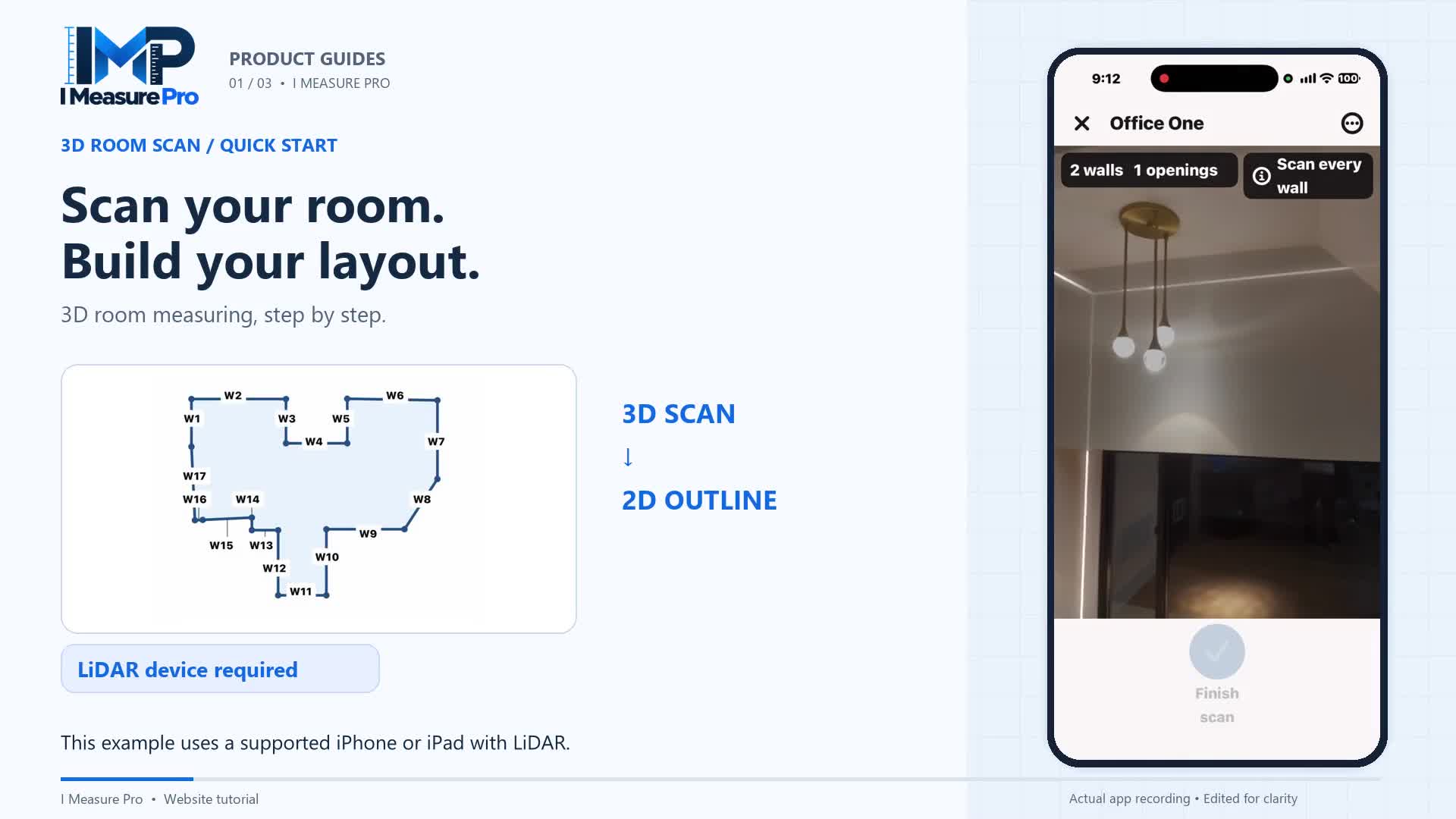
3D Room Scan
From a room around you to a dimensioned 2D outline. Follow the scan, review the result and keep it with your project.

ORGANIZE · SAVE · SHARE
See how to name a project, choose the customer-information option, organize room measurements and notes, and save or share a project PDF in I Measure Pro.
Shown in the Apple preview. Optional customer details and branded reports belong to the Measure plan. The video demonstrates the customer-information option; it does not show completed customer fields. See plan details.
UNDERSTAND THE FEATURE
A measurement becomes more useful when you know where it belongs. This walkthrough shows how to start a named project, add rooms and measurements, and keep the details together as the job develops. Follow the Home Office example to see how a project name and a room name create a clear structure for your work. Room notes let you record the context you want to remember when you return.
For customer work, the Measure plan includes optional customer details and branded reports. Personal projects can continue without customer information. The video shows how to choose that option, update project details, add measurements and save or share a project PDF. Return through My projects to reopen your saved work. Keep a useful room record you can find and discuss, with less reliance on scattered notes or remembering which dimensions belong to which job.
Use projects for a flooring estimate, a carpet replacement, paint-preparation notes or a home renovation involving several rooms. Give every room a clear name and keep its measurements and notes together, ready for your next customer or contractor conversation.
TAKE IT STEP BY STEP
Use these steps alongside the video. Review important measurements before ordering materials or fitted items.
Create a project and give it a recognizable name. Choose whether to add customer information or keep it a personal project.
Name each room or measurement, add more measurements as needed, and keep useful room notes with the result.
Save or share the project PDF, then use My projects to reopen and continue your saved work.
Keep every job organized with I Measure Pro. Your home screen brings together new projects and saved work.
Choose Start a new project, then enter a clear project name. In this example, we are creating Home Office.
Working for a customer? Choose Yes under Add customer information, then enter the details the app requests. For a personal project, you can leave this set to No.
Tap Create project. Choose a measurement type, and give each room or measurement a useful name. Here, the project is Home Office, and the room is Office One.
Use Add measurement to build out the project. Edit project lets you update the project details, while room notes keep important information with your measurements.
When your work is ready, choose Save project PDF or Share project PDF. Confirm the report name, then choose where to save or share it.
Use My projects on the home screen to reopen, continue, or share saved work. One project keeps your measurements and details together.
KEEP EXPLORING
1:11
APPLE · OPTIONAL 3D
From a room around you to a dimensioned 2D outline. Follow the scan, review the result and keep it with your project.
 0:55
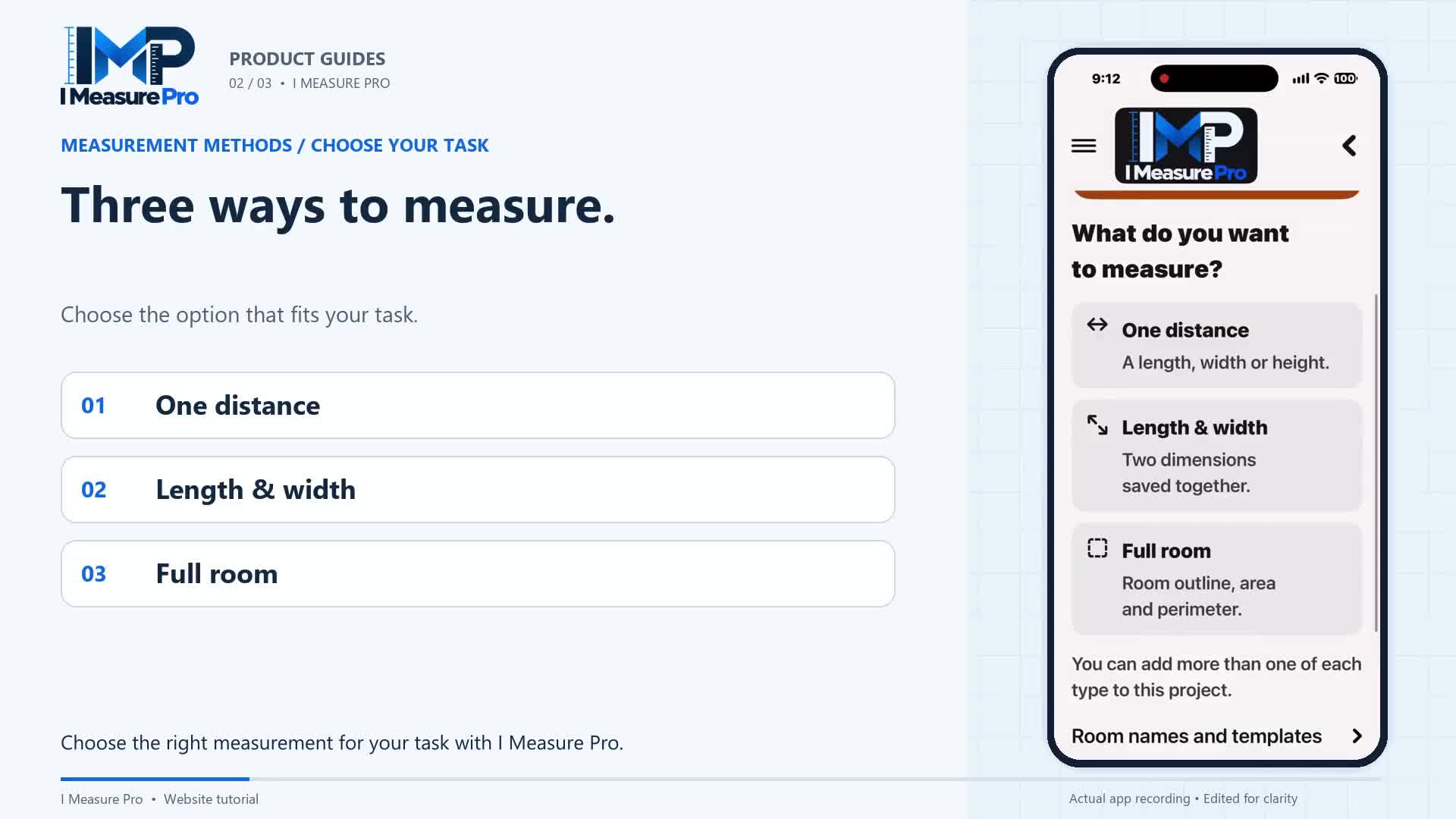
MEASURE · CHOOSE YOUR TASK
A single dimension, two dimensions together, or a whole room outline. See where each measurement type fits.
I MEASURE PRO · FOR ANDROID
Tap the corners with your Android phone’s camera. Get the floor plan, square feet and wall lengths, then share a PDF report. Start free (3 saved areas), then one plan: Measure, $10.99 a month, unlimited projects.