 1:11
APPLE · OPTIONAL 3D
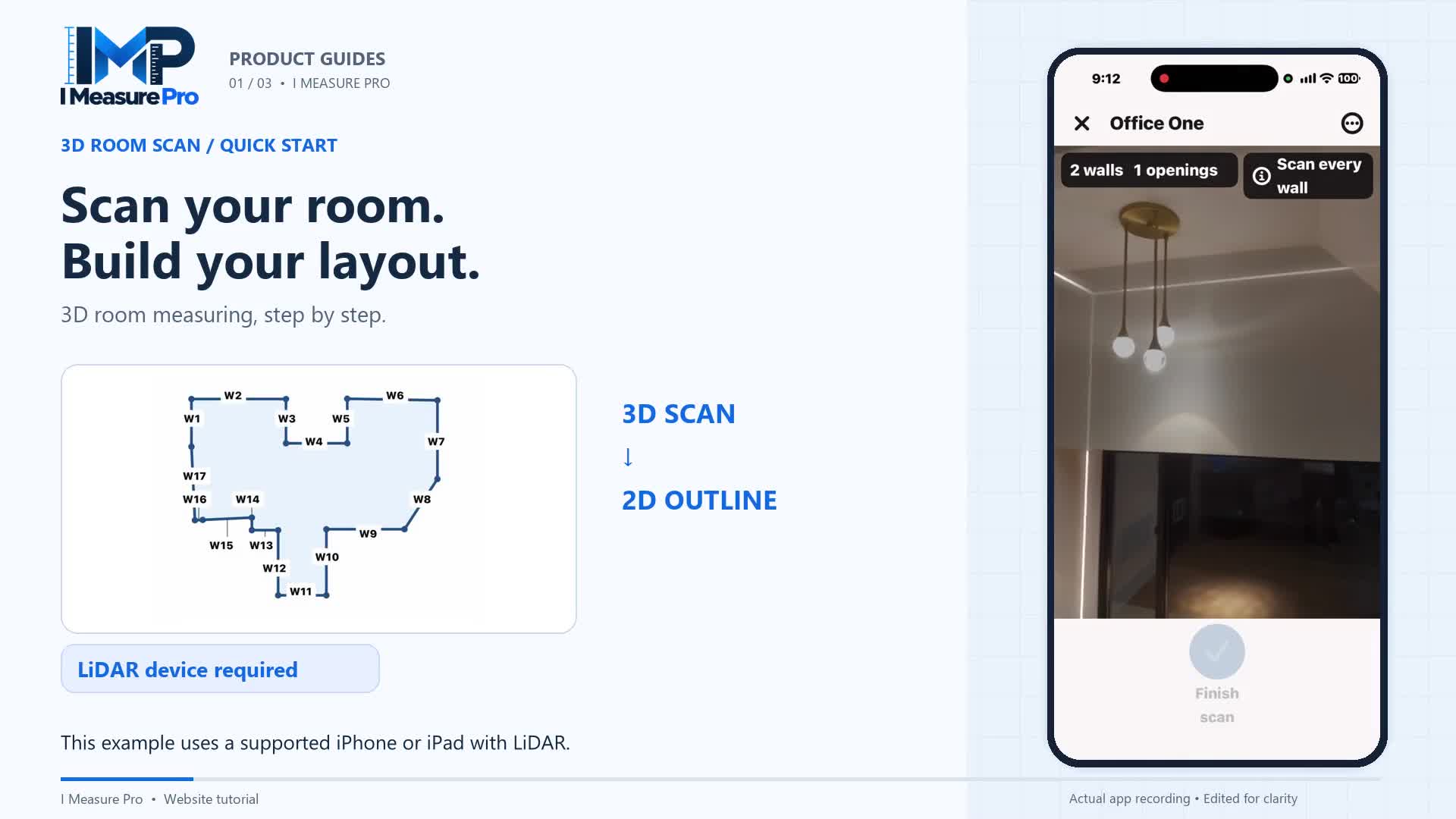
3D Room Scan
From a room around you to a dimensioned 2D outline. Follow the scan, review the result and keep it with your project.

MEASURE · CHOOSE YOUR TASK
Learn when to choose One distance, Length & width or Full room in I Measure Pro, and see the difference between marking room corners and optional Apple 3D Room Scan.
The tutorial uses Apple preview footage and labeled concept illustrations for One distance and Length & width. Apple and Android share the core measurement tasks; optional 3D Room Scan is for supported Apple devices. See plan details.
UNDERSTAND THE FEATURE
Sometimes you need one dimension. Other jobs need two dimensions or a complete room outline. I Measure Pro offers three measurement types so you can choose the record that fits the task: One distance, Length & width, and Full room. This video explains their differences using Apple preview screens and labeled concept illustrations, helping you decide where to start before taking a measurement.
Use One distance for a selected length, width or height. Choose Length & width to keep two separately captured dimensions together in one entry. Full room creates an outline with floor area and perimeter. For a full room, you then choose a capture method: mark the corners with point-to-point, or use optional 3D Room Scan on a supported LiDAR iPhone or iPad. Each option keeps the result connected to a named record, whether you are preparing a home improvement or recording details for a customer project.
Choose a single distance for a wall span or height, paired dimensions for a rectangular space, or Full room for flooring and carpet planning. Paint preparation also needs relevant wall dimensions and openings; floor area alone does not determine paint quantity.
TAKE IT STEP BY STEP
Use these steps alongside the video. Review important measurements before ordering materials or fitted items.
Choose this for a single length, width or height between selected endpoints.
Keep two separately captured dimensions together in one named entry.
Create a room outline with area and perimeter. Mark room corners, or choose optional 3D Room Scan on a supported LiDAR Apple device.
Choose the right measurement for your task with I Measure Pro. You have three options: One distance, Length and width, or Full room.
Choose One distance when you need a single length, width, or height. Think of one measurement from a starting point to an ending point.
Choose Length and width when you need two dimensions saved together. This keeps both measurements organized in one entry.
Choose Full room for a room outline, area, and perimeter. Name the room, then choose how you want to capture it.
Mark room corners lets you capture each corner and close the outline. Or choose 3D Room Scan on a supported LiDAR iPhone or iPad.
Follow the on-screen guidance, review your result, and save it to your project. The right method keeps each measurement clear and easy to find.
KEEP EXPLORING
1:11
APPLE · OPTIONAL 3D
From a room around you to a dimensioned 2D outline. Follow the scan, review the result and keep it with your project.
 1:09
ORGANIZE · SAVE · SHARE
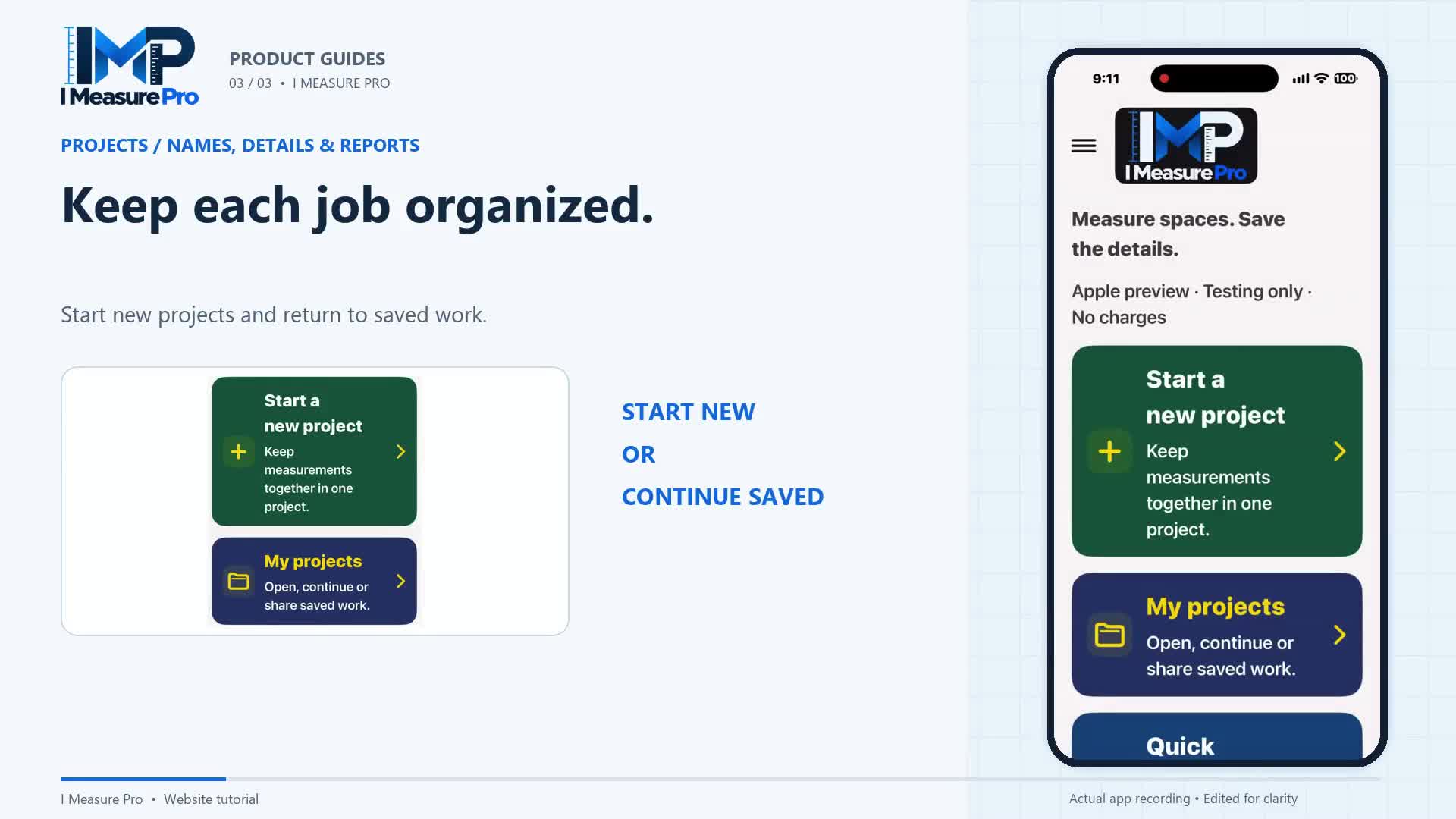
Name the job, keep room notes close, and turn your saved measurements into a project PDF.
I MEASURE PRO · FOR ANDROID
Tap the corners with your Android phone’s camera. Get the floor plan, square feet and wall lengths, then share a PDF report. Start free (3 saved areas), then one plan: Measure, $10.99 a month, unlimited projects.