 0:55
MEASURE · CHOOSE YOUR TASK
Measurement Methods
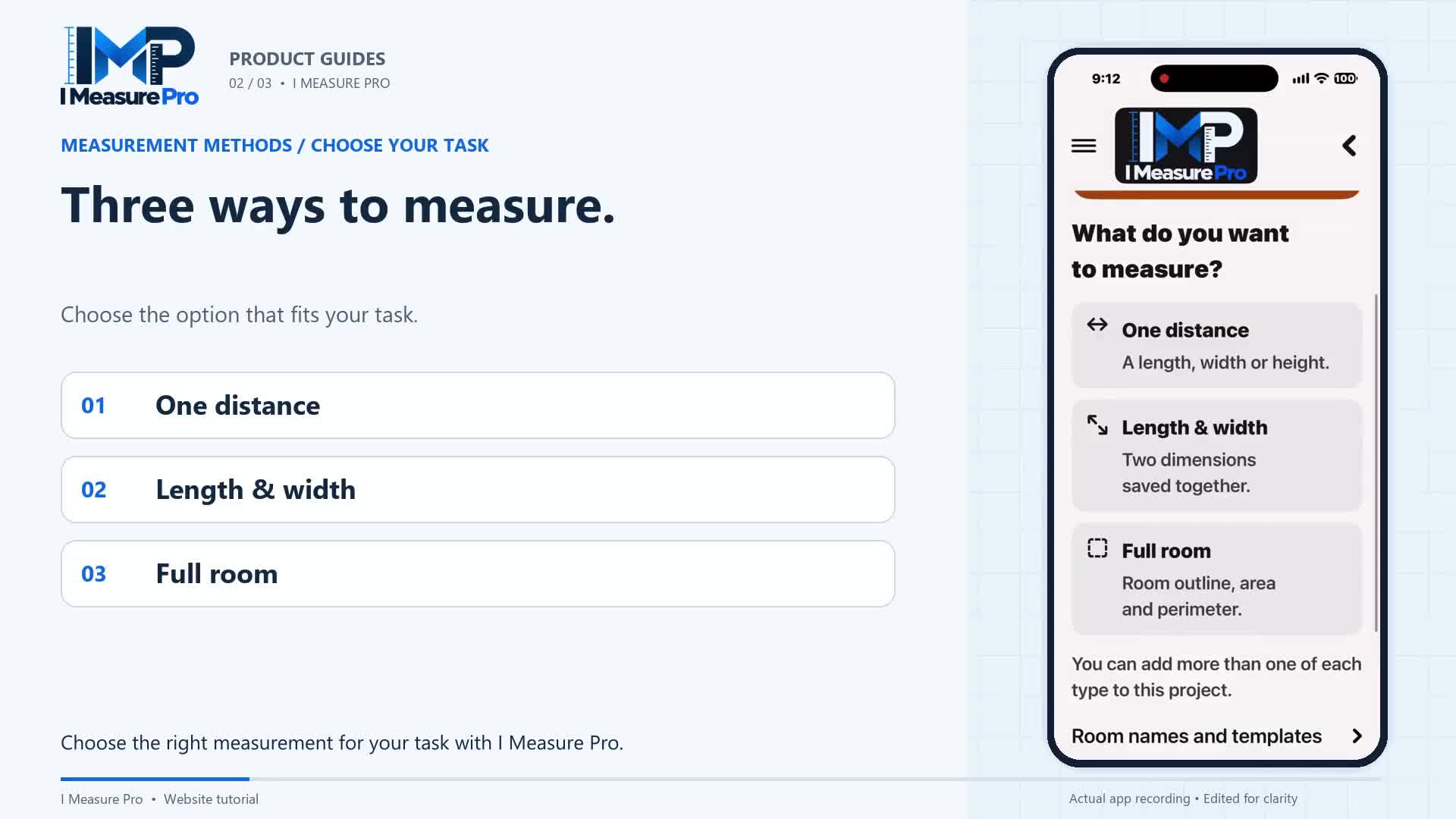
A single dimension, two dimensions together, or a whole room outline. See where each measurement type fits.

APPLE · OPTIONAL 3D
Watch how to choose 3D Room Scan, capture visible walls, review a 2D room outline and save it to your project on a supported LiDAR iPhone or iPad.
3D Room Scan requires a supported LiDAR-equipped iPhone or iPad. It is included with Measure at no extra charge; point-to-point remains included. The scan creates a 2D room record, separate from 3D Studio. See plan details.
UNDERSTAND THE FEATURE
Capture a room with your supported LiDAR iPhone or iPad, then keep the result as a dimensioned 2D room record. This tutorial follows the process from choosing Full room and naming the space to moving around its visible walls, corners and openings. See how to scan steadily, work around furniture and check that you have covered the room before finishing.
The next step is reviewing the result. Check the room’s shape, wall dimensions, area and perimeter, then rescan if something needs another look. Add useful notes and save the room to your project, ready for a PDF report. Instead of keeping a few disconnected numbers, you have the room outline and its measurements together for flooring preparation, renovation planning or a customer conversation. Verify important dimensions before ordering materials or fitted items.
Use 3D Room Scan when you want a room outline for early flooring, carpet or renovation planning and have a supported LiDAR Apple device. Capture each room as its own record, then organize those records within a project.
TAKE IT STEP BY STEP
Use these steps alongside the video. Review important measurements before ordering materials or fitted items.
Inside a project, choose Full room, enter a room name, select 3D Room Scan and tap Start measuring.
Move gently around the room. Keep visible walls, corners and openings in view, including wall areas around furniture.
Finish the scan, check the room outline and dimensions, then save the room with useful notes. Rescan if the result needs another look.
Let's scan a room with I Measure Pro. This example uses a supported iPhone or iPad with LiDAR.
Inside your project, choose Full room and enter a room name. Then select 3D Room Scan and tap Start measuring.
Move your device gently to begin. Scan slowly around the room, keeping walls, corners, and openings in view.
Watch the white outlines appear as the scan identifies surfaces. Work around the room in one direction, returning to the wall where you started.
Furniture can stay in place. Keep the visible wall areas around and above it in view, and check that you have covered the whole room.
When you have finished scanning, tap Finish scan. I Measure Pro creates a two-dimensional room outline for you to review.
Check the room shape, corner angles, area, and wall dimensions before saving. If something needs another look, use Measure again.
Tap Save room, add any useful notes, then save and finish. Your measured room is now organized in your project, ready to save or share as a PDF.
KEEP EXPLORING
0:55
MEASURE · CHOOSE YOUR TASK
A single dimension, two dimensions together, or a whole room outline. See where each measurement type fits.
 1:09
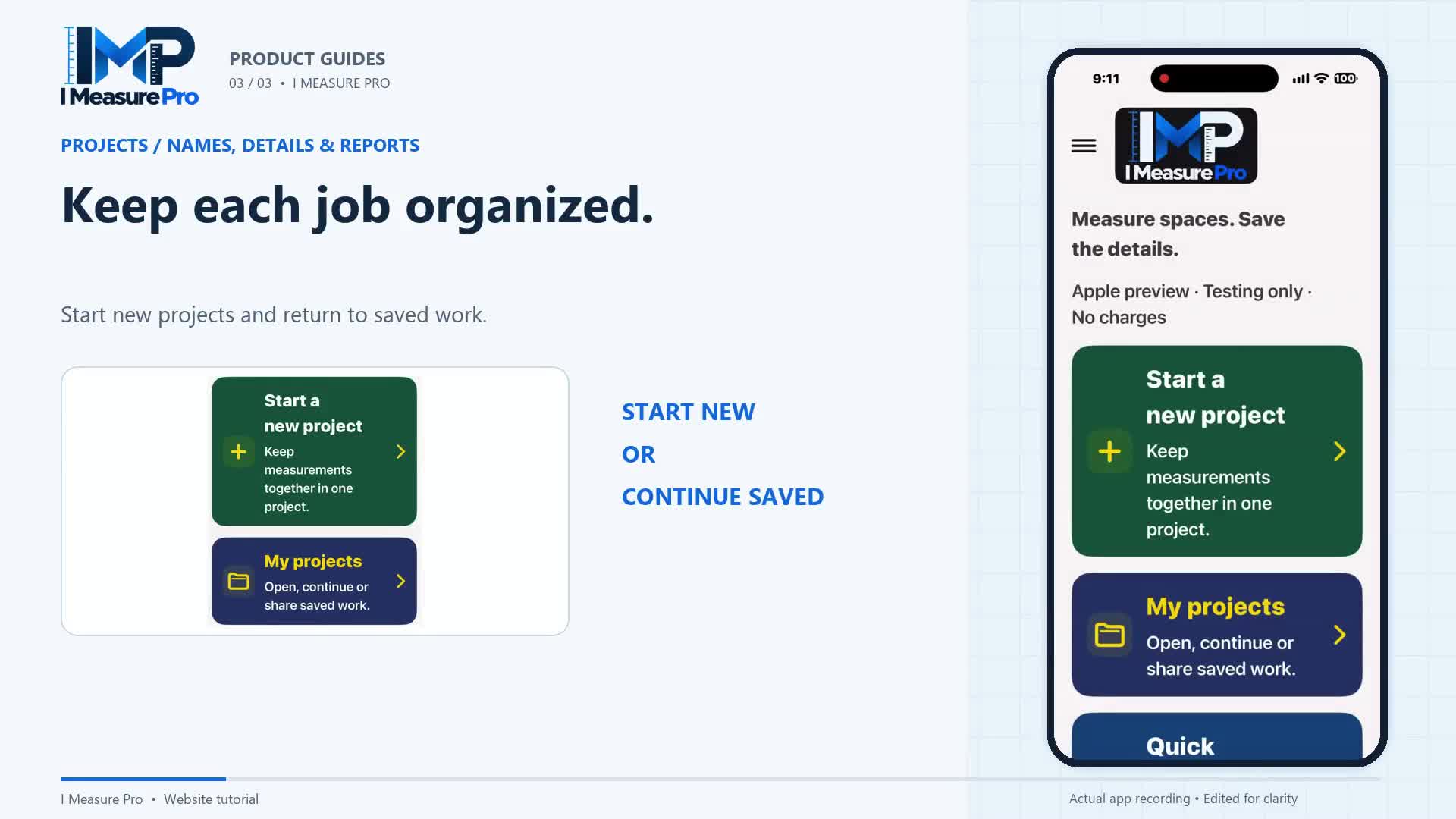
ORGANIZE · SAVE · SHARE
Name the job, keep room notes close, and turn your saved measurements into a project PDF.
I MEASURE PRO · FOR ANDROID
Tap the corners with your Android phone’s camera. Get the floor plan, square feet and wall lengths, then share a PDF report. Start free (3 saved areas), then one plan: Measure, $10.99 a month, unlimited projects.